Managing Tickets
Tickets are the core unit of work in Auxilium. Each ticket represents a customer support request, tracks its progress through a defined lifecycle, and maintains a full audit trail of every change.
The ticket list
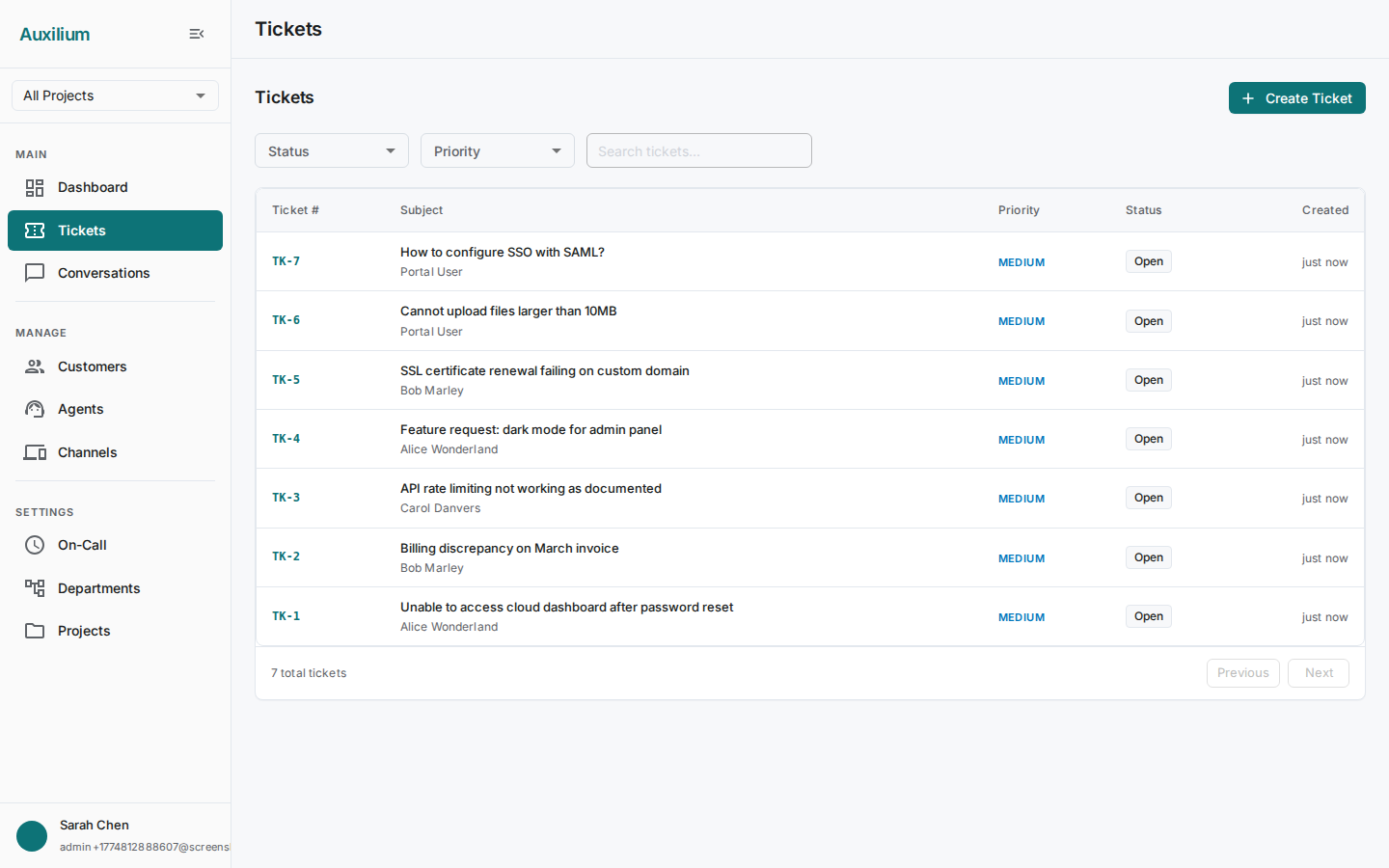
Navigate to Tickets in the sidebar to open the ticket list. The page header displays the title and a Create Ticket button on the right.
Filtering tickets
Use the filter controls above the table to narrow down the list:
- Status dropdown – choose from All, Open, In Progress, Waiting on Customer, Resolved, or Closed.
- Priority dropdown – choose from All, Urgent, High, Medium, or Low.
- Search field – type a keyword to search across ticket subjects and customer names.
Filters apply immediately. Combine them to build focused views, such as all open urgent tickets or all resolved tickets for a specific search term.
Reading the ticket table
The table displays one row per ticket with the following columns:
| Column | Description |
|---|---|
| Ticket # | A human-readable identifier in TK-{n} format, displayed in blue monospace text. Click it to open the ticket detail. |
| Subject | The ticket subject line, with the customer name shown underneath. |
| Priority | A color-coded label: red for Urgent, orange for High, blue for Medium, grey for Low. |
| Status | A chip showing the current lifecycle state. |
| Created | Relative timestamp (e.g. “3 hours ago”). |
Use Previous and Next at the bottom of the table to paginate through results.
Creating a ticket
- Click the Create Ticket button in the top-right corner of the ticket list.
- Fill in the dialog form:
| Field | Required | Description |
|---|---|---|
| Customer | Yes | Select the customer from the dropdown. |
| Subject | Yes | A short summary of the issue. |
| Description | Yes | A detailed explanation of the problem. Use multiple lines if needed. |
| Priority | No | Defaults to Medium. Change to Urgent, High, or Low as appropriate. |
- Click Create to submit.
The new ticket appears in the list with a server-generated ticket number and an Open status. If an SLA policy is configured for the ticket’s priority, deadlines are applied automatically.
Ticket detail
Click any ticket row in the list to open its detail page.
Header
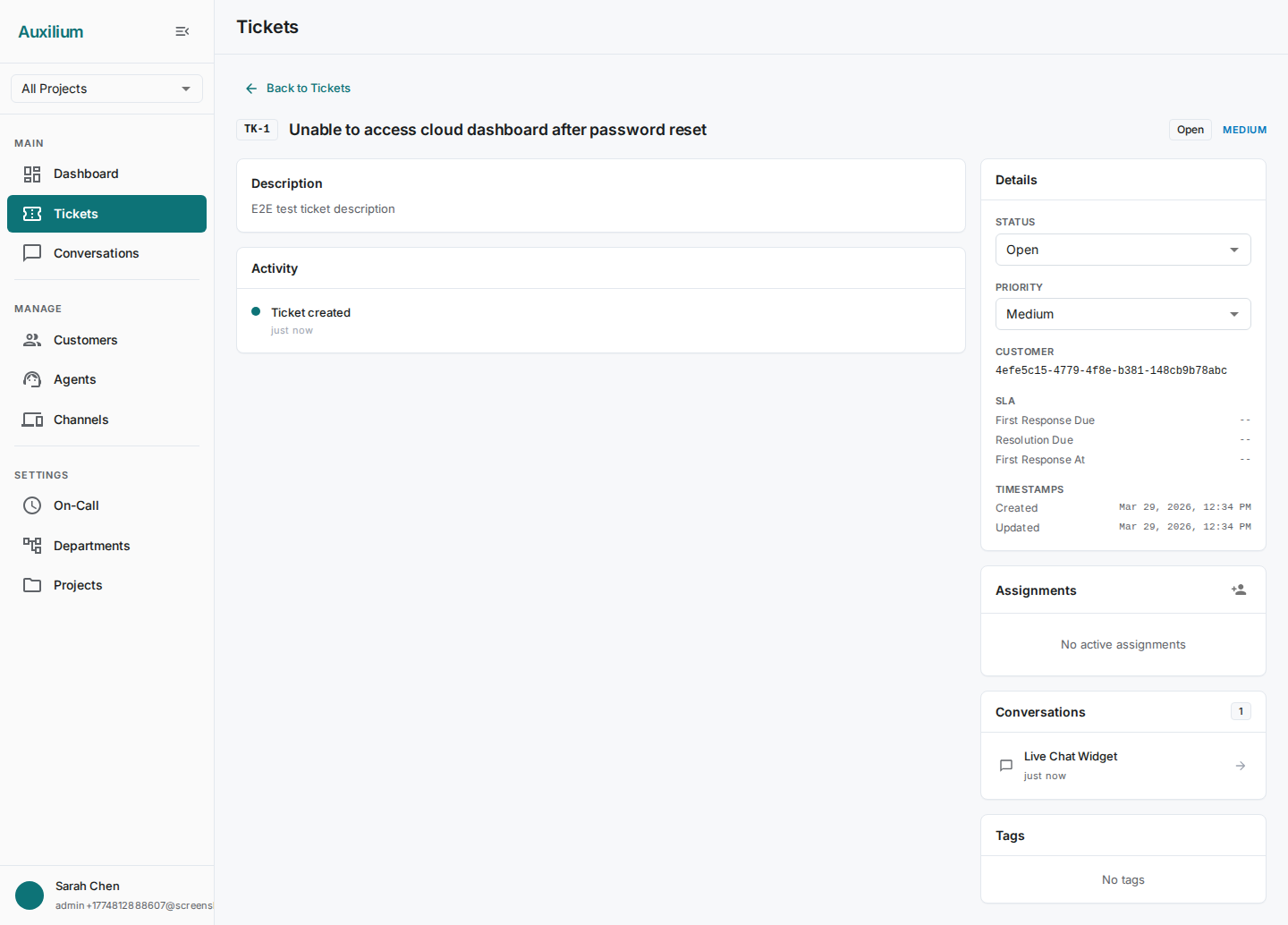
The header displays a Back button (returns to the ticket list), the TK-{n} chip, the ticket subject, a status chip, and the priority label.
Left column
- Description card – the full description provided when the ticket was created.
- Activity timeline – a chronological feed of every event on the ticket. See Activity Timeline for details on the event types displayed here.
Right sidebar
The sidebar contains several cards for viewing and editing ticket properties:
Details card
- Status dropdown – change the ticket’s lifecycle state directly.
- Priority dropdown – escalate or de-escalate the ticket.
- Customer ID – the customer associated with this ticket.
- SLA info – First Response Due, Resolution Due, First Response At, and whether the SLA has been breached.
- Timestamps – created and last-updated times.
Assignments card – shows assigned agents and lets you add or remove them. See Assignment.
Conversations card – displays a count badge and lists linked conversations with channel icons.
Tags card – displays tag chips attached to this ticket. See Tags.
Updating status and priority
- Open the ticket detail page.
- In the Details card on the right sidebar, click the Status dropdown and select the new status.
- To change priority, click the Priority dropdown and select the new level.
Changes are saved immediately. Each change is recorded in the activity timeline with the old and new values.
Ticket lifecycle
Every ticket moves through a defined set of states. Transitions appear in the activity timeline.
| Status | Description |
|---|---|
| Open | Newly created, awaiting agent action. |
| In Progress | An agent is actively working on the ticket. |
| Waiting on Customer | Agent has responded; awaiting customer reply. |
| Resolved | The issue has been addressed. |
| Closed | Ticket is finalized. |
Tickets can move backward (for example, from Resolved back to In Progress if the customer reopens the issue) except once Closed.
Priority levels
Priority determines how urgently a ticket should be handled and which SLA policy is applied.
| Priority | Typical use |
|---|---|
| Urgent | Complete service outage or data loss affecting production. |
| High | Significant degradation with no workaround available. |
| Medium | Functionality impaired but a workaround exists. Default for new tickets. |
| Low | Minor issue, cosmetic defect, or general question. |