Inbox
The Inbox is the central workspace for support agents. It aggregates conversations across all tickets into a single view, giving you everything you need to triage and respond without jumping between pages.
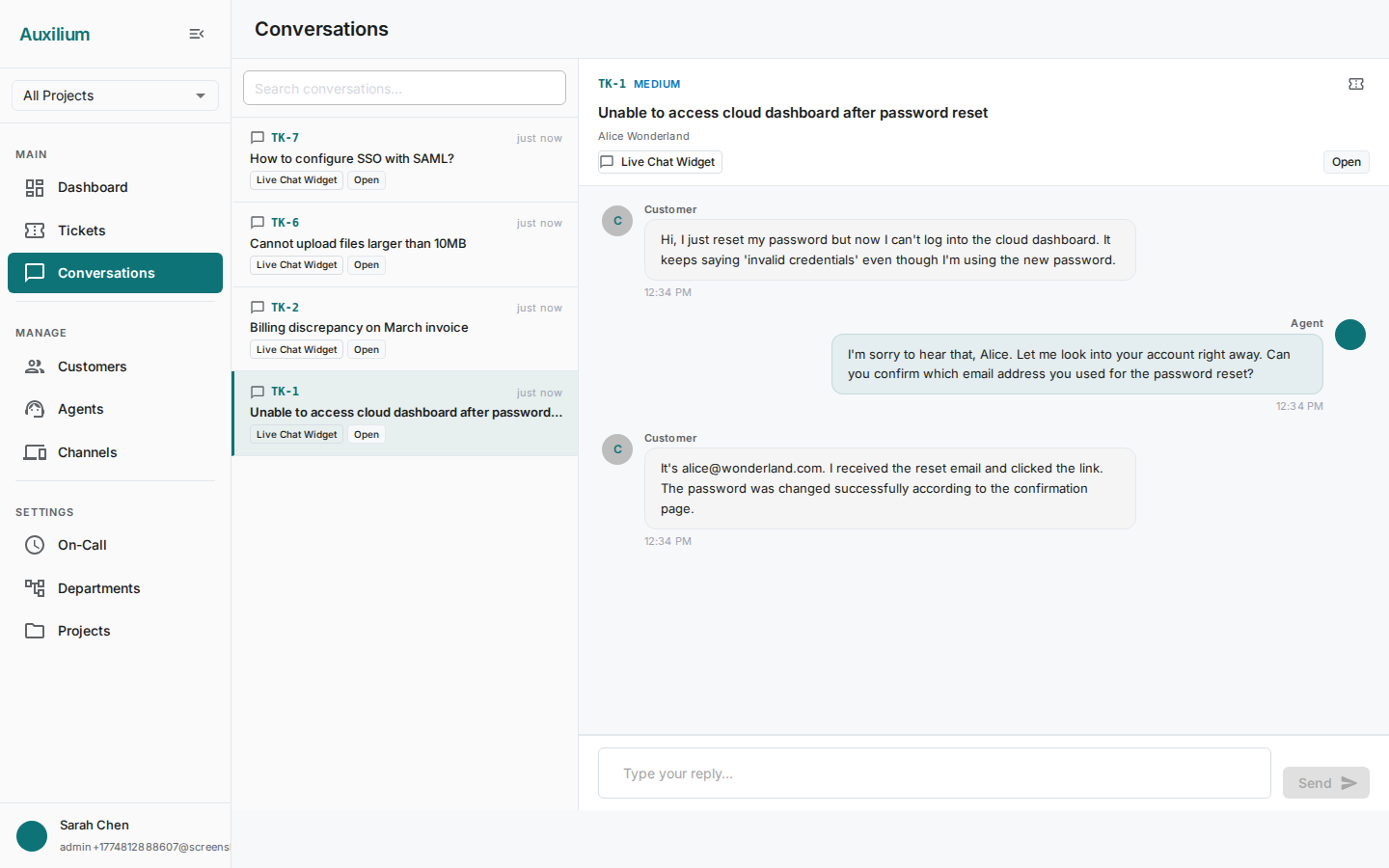
Opening the Inbox
Click Conversations in the sidebar navigation. The Inbox loads with the two-panel layout: the conversation list on the left and the thread view on the right.
Reading the conversation list
Each row in the list represents a single conversation and surfaces the information you need to prioritize your work:
| Element | What it shows |
|---|---|
| Ticket number | Displayed as TK-{number} in blue monospace text. Click it to open the Ticket Detail Modal. |
| Agent avatar | The avatar of the agent assigned to the ticket. |
| Subject | The ticket subject line. Appears in bold when the conversation is selected. |
| Customer name | The name of the customer who submitted the ticket. |
| Channel | A chip showing the channel type – for example, “Email” or “Chat”. |
| Status | A colored chip indicating the ticket status: Open (blue), Pending (yellow), Resolved (green), or Closed (grey). |
| Priority | The ticket’s priority level (Low, Medium, High, Urgent). |
| Last message | A timestamp showing when the most recent message was sent. |
Click any row to select it. The right panel immediately loads the conversation thread.
Quick ticket detail
Click the TK-{n} ticket number chip – either in the conversation list or in the thread header – to open the Ticket Detail Modal. This popup provides a quick summary without leaving the Inbox:
- Status and Priority labels.
- The ticket description.
- SLA information showing response and resolution targets.
- An Open Full Page button to navigate to the complete ticket view.
This is useful when you need to check ticket context before deciding how to respond.