Email (IMAP/SMTP)
Email is the most widely used support channel. Auxilium connects to your mail server over standard IMAP and SMTP protocols, polling for inbound messages and sending replies on behalf of your agents. This guide walks you through creating an email channel entirely from the web UI.
How it works
- Inbound (IMAP) – Auxilium connects to your IMAP server and monitors a mailbox (typically
INBOX) for new messages. When a customer sends an email to your support address, Auxilium ingests it, creates or appends to a conversation, and routes it to the appropriate agent. - Outbound (SMTP) – When an agent replies from Auxilium, the platform sends the response through your SMTP server using the configured “from” address and display name. The customer sees a normal email in their inbox.
Creating an email channel
Step 1: Open the Create Channel dialog
Navigate to Channels in the sidebar, then click the Add Channel button in the top-right corner. This opens the Create Channel dialog.
Step 2: Enter the channel name
In the Channel Name field, enter a descriptive name for this channel – for example, Support Email or Sales Inquiries. This name will appear on the channel card in the grid.
Step 3: Select the Email channel type
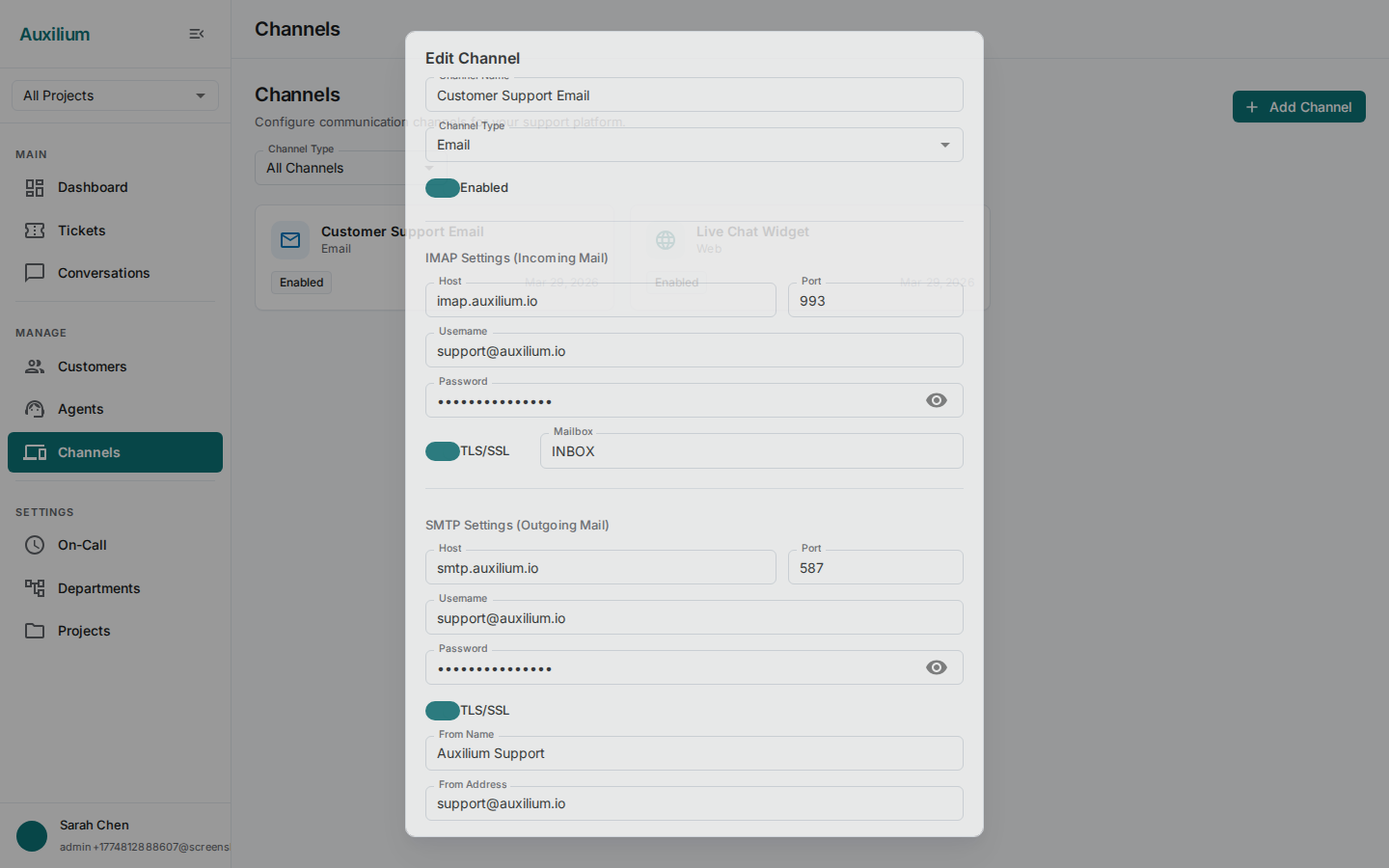
Open the Channel Type dropdown and select Email. When you select Email, the dialog expands to reveal three additional configuration sections: IMAP Settings, SMTP Settings, and Support Email Address.
Step 4: Configure IMAP settings (incoming mail)
The IMAP section controls how Auxilium reads inbound email from your mail server. Fill in the following fields:
| Field | Description |
|---|---|
| Host | Your IMAP server hostname (e.g., imap.gmail.com). Required. |
| Port | The IMAP server port. Use 993 for TLS or 143 for plaintext. Required. Accepts values 1–65535. |
| Username | The account username, usually the full email address. Required. |
| Password | The account password or app-specific password. Required. Use the visibility toggle (eye icon) to reveal or hide the value. |
| TLS/SSL | A toggle switch to enable encrypted connections. Turn this on for production use. |
| Mailbox | The mailbox folder to monitor. Defaults to INBOX. Change this only if you want Auxilium to watch a different folder. |
Step 5: Configure SMTP settings (outgoing mail)
The SMTP section controls how Auxilium sends outbound email on behalf of your agents. Fill in the following fields:
| Field | Description |
|---|---|
| Host | Your SMTP server hostname (e.g., smtp.gmail.com). Required. |
| Port | The SMTP server port. Use 587 for STARTTLS or 465 for implicit TLS. Required. |
| Username | The account username, usually the full email address. Required. |
| Password | The account password or app-specific password. Required. Use the visibility toggle to reveal or hide the value. |
| TLS/SSL | A toggle switch to enable encrypted connections. Turn this on for production use. |
| From Name | The display name on outgoing emails (e.g., Acme Support). Optional but recommended. |
| From Address | The From: email address on outgoing emails. Required. This is the address customers will see and reply to. |
Step 6: Enter the support address
In the Support Address field, enter the email address that customers write to (e.g., support@company.com). This is typically the same as the IMAP username and the SMTP From Address.
Step 7: Test the connection
Before creating the channel, click the Test Connection button to verify that Auxilium can reach both your IMAP and SMTP servers.
The test runs against both protocols independently and displays results for each:
- Both succeed – You will see green success indicators for both IMAP and SMTP. You are ready to create the channel.
- One or both fail – The failing protocol shows a red failure indicator along with a specific error message describing what went wrong (e.g., “authentication failed” or “connection refused on port 465”). Fix the indicated issue and test again.
Step 8: Create the channel
Once both IMAP and SMTP tests pass, click Create to save the channel. The new channel card will appear in the Channels grid. Auxilium immediately begins polling the configured IMAP mailbox for new messages.
Provider-specific settings
Gmail
Enter the following settings in the Create Channel dialog:
| Setting | IMAP value | SMTP value |
|---|---|---|
| Host | imap.gmail.com | smtp.gmail.com |
| Port | 993 | 587 |
| TLS/SSL | On | On |
| Username | Your full Gmail address | Your full Gmail address |
| Password | App-specific password | App-specific password |
You must also ensure that IMAP access is enabled in Gmail: Settings > Forwarding and POP/IMAP > Enable IMAP.
Microsoft 365 / Outlook
Enter the following settings in the Create Channel dialog:
| Setting | IMAP value | SMTP value |
|---|---|---|
| Host | outlook.office365.com | smtp.office365.com |
| Port | 993 | 587 |
| TLS/SSL | On | On |
| Username | Your full email address | Your full email address |
| Password | Account password or app password | Account password or app password |
For service accounts, you may need to enable SMTP AUTH in the Exchange admin center.
Custom IMAP / SMTP servers
For self-hosted or other providers, use the connection details from your mail server documentation. General guidelines:
- IMAP: Port
993with TLS/SSL toggled on, or port143with STARTTLS. - SMTP: Port
587with STARTTLS, or port465with implicit TLS. - Username: Usually the full email address, but some servers accept just the local part.
- Mailbox: Leave as
INBOXunless you want Auxilium to monitor a different folder.
Troubleshooting
When the Test Connection button reports a failure, the error message will help you identify the issue. Here are the most common errors and their solutions.
Authentication failures
| Error message | Likely cause | Solution |
|---|---|---|
authentication failed or invalid credentials | Wrong username or password | Double-check your credentials. For Gmail, make sure you are using an app-specific password, not your regular Google password. |
LOGIN failed (Gmail) | App passwords not configured | Generate an app-specific password at myaccount.google.com/apppasswords. |
AUTHENTICATE failed (Microsoft 365) | Basic auth disabled by admin | Contact your Microsoft 365 admin to enable SMTP AUTH, or switch to OAuth. |
TLS and connection errors
| Error message | Likely cause | Solution |
|---|---|---|
connection refused | Wrong port or firewall blocking | Verify the port number. Ensure your network allows outbound connections on that port. |
TLS handshake failure | TLS mismatch | Port 993/465 expect implicit TLS (toggle on). Port 143/587 use STARTTLS – also toggle TLS/SSL on. |
certificate verify failed | Self-signed or expired certificate | Ensure your mail server has a valid, trusted TLS certificate. |
connection timeout | DNS or network issue | Verify the hostname resolves correctly. Check that no proxy or firewall is blocking the connection. |
SMTP-specific errors
| Error message | Likely cause | Solution |
|---|---|---|
relay access denied | From Address not authorized | Ensure the From Address matches an address your SMTP server is authorized to send from. |
message rejected | SPF/DKIM/DMARC failure | Configure DNS records (SPF, DKIM, DMARC) for your sending domain to improve deliverability. |
rate limit exceeded | Too many sends | Your provider may throttle outbound email. Consider upgrading your plan or spacing out sends. |
Next steps
- Managing Channels – Learn how to edit, enable/disable, and delete channels after creation.
- Web Chat – Set up a web chat channel for real-time customer conversations.